Discover Models
Search huggingface.co for GGUF (and safetensors, for vLLM) models directly from the dashboard, see which files will actually fit your GPU before downloading, and pause or resume large transfers.
What it does
The Discover tab queries the Hugging Face Hub API (backend/hub.py search()), filtered to repos tagged gguf, sorted by downloads, last-modified, or likes. Selecting a repo lists its individual GGUF files (hub.py files()), which collapses multi-shard files (*-00001-of-0000N.gguf) into a single entry with their combined size, and separates out mmproj (multimodal projector) files for vision models.
Each file is rated against your hardware. When a prediction is available (the default), the badge is offload-aware: vram_predict.fit_label() derives it from the same physics estimate that powers the Will-it-run panel, which accounts for MoE active-vs-total parameters and partial GPU offload. So a large MoE that runs fast with its experts on CPU reads as TIGHT, not CPU OFFLOAD, even though it's bigger than your VRAM. When no prediction can be made, the badge falls back to hub.py's size-only _fit():
- FITS VRAM — a fast, GPU-resident placement (or, in fallback, file size × 1.15 ≤ total VRAM — the 15% margin covers KV cache and compute headroom).
- TIGHT — usable, but with the model partly offloaded to CPU/RAM, or (in fallback) fitting VRAM without clearing the 1.15× margin.
- CPU OFFLOAD — generation would be slow, or the weights stream from disk. The model still loads; nothing is ever blocked.
- ? (unknown) — no VRAM detected and no prediction, so no rating can be made.
Expanding a repo also shows a Will-it-run panel that predicts whether a selected quant will fit your GPU and at what approximate speed. It factors in MoE active-vs-total parameters, your GPU's memory bandwidth (with manual overrides in Setup), and the quant's size — then rates it as FITS, TIGHT, or CPU OFFLOAD with an estimated tok/s. The same estimate appears as a badge when you expand a model in the file list.
Downloads run in a background thread (hub.py DownloadManager) that streams the file to disk and reports progress the dashboard polls. Pausing keeps the partial .part file on disk; resuming re-issues the request with an HTTP Range header starting from the bytes already downloaded, so a paused multi-gigabyte download picks up where it left off instead of restarting from zero. Cancelling instead deletes the partial file.
Each result also carries platform tags (Windows/Linux/macOS) — GGUF runs on all three via llama.cpp, so GGUF results always show all three; the tag matching your current machine is highlighted.
How to use it
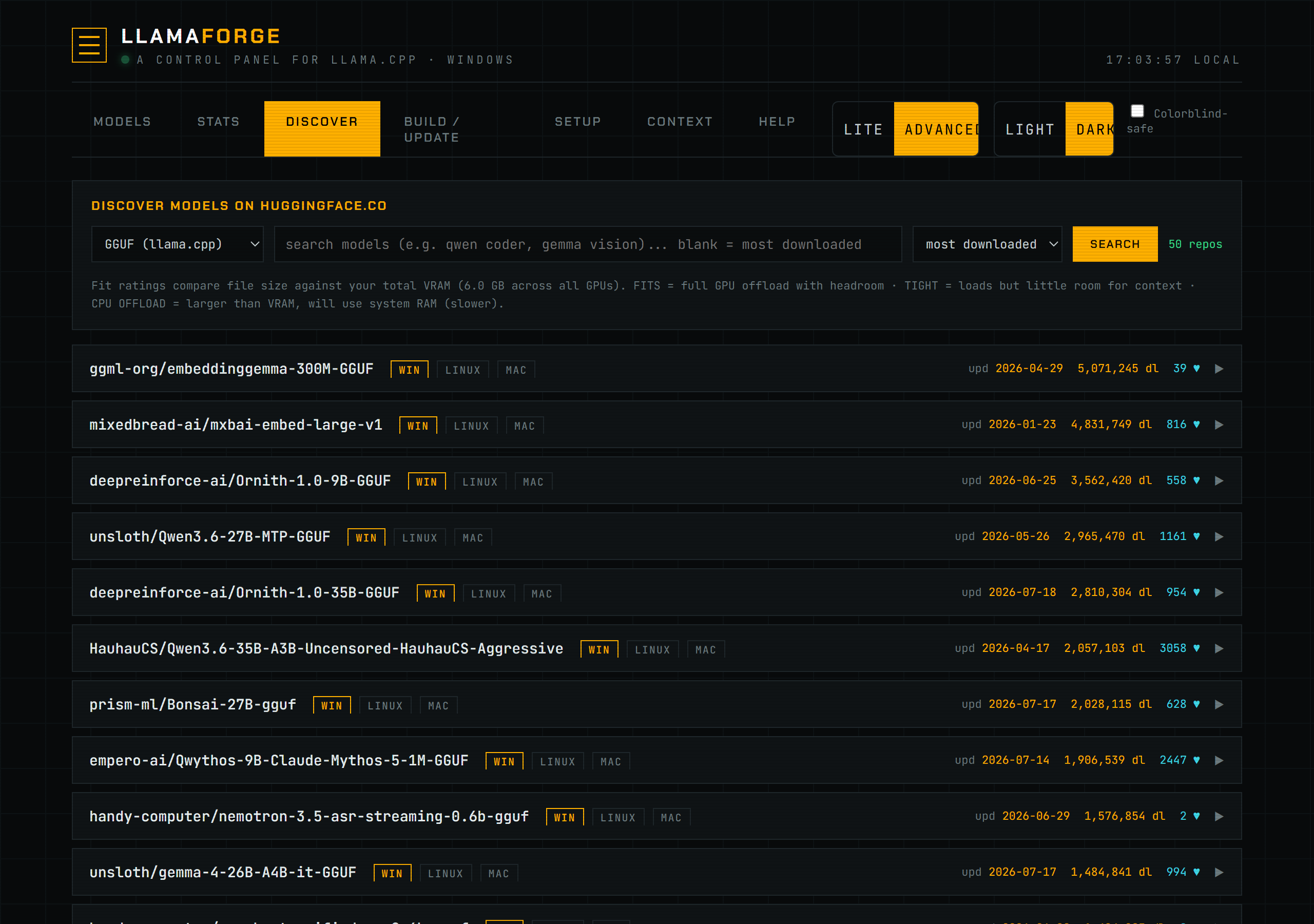
- Open the Discover tab. Leave the search box blank to browse the most-downloaded GGUF repos, or type a query (e.g.
qwen coder,gemma vision). - Switch the mode dropdown to safetensors (vLLM) if you want a full-precision/quantized model for the vLLM backend instead (Windows + WSL2 only — this option is hidden on platforms without vLLM support).
- Click a repo row to expand its file list. Each file shows its size and a fit badge (FITS VRAM / TIGHT / CPU OFFLOAD).
- Click Download on the file you want. Progress, current file (for multi-file/shard downloads), speed, and ETA appear in the Download card.
- Use Pause to suspend a running download (the partial file is kept) and Resume to continue it later. Cancel download stops it and discards the partial file.
- Once a download finishes, click Add to my models to register it as a new section in
models.ini, ready to tune and load from the Models tab.
Screenshot
Reference
| Concept | Source | Behavior |
|---|---|---|
| Search | backend/hub.py search() | Queries huggingface.co/api/models?filter=gguf, sorted by downloads/lastModified/likes. |
| File listing | backend/hub.py files() | Lists a repo's .gguf files, collapsing sharded files and separating mmproj files. |
| VRAM-fit rating | vram_predict.fit_label(), falling back to hub.py _fit() | Offload-aware: derived from the physics prediction (gpu-resident → fits; usable hybrid/offload → tight; slow/streaming → offload). Falls back to the size-only heuristic (fits: size × 1.15 ≤ VRAM; tight: ≤ VRAM; offload: > VRAM) when no prediction is available. |
| Will-it-run panel | GET /api/vram/predict | Predicts regime + tok/s for a repo+quant using MoE-aware model size, GPU bandwidth (with Setup overrides), and quant factor. |
| Download engine | backend/hub.py DownloadManager | Background thread; one job at a time; progress polled via /api/hub/progress. |
| Pause / resume | DownloadManager.pause() / resume() | Pause keeps the .part file; resume continues via an HTTP Range request from the bytes already on disk. |
| Cancel | DownloadManager.cancel() | Stops the job and deletes the partial .part file. |
| Platform tags | hub.py PLATFORMS / web/js/discover.js platTags() | GGUF always tags windows/linux/macos; the tag matching the current machine is highlighted. |
Troubleshooting
If a search returns an error message instead of results, the request to huggingface.co failed (network issue, or Hugging Face is unreachable) — the error text is shown truncated in the search bar's message area. A GATED tag on a repo means it requires accepting terms and an HF token on huggingface.co first; downloads of gated repos fail without that. Only one download runs at a time — starting a second while one is active is rejected with "A download is already running."
See also Models & Tuning for tuning a model once it's downloaded and added, and models.ini Format for how downloaded models are registered.